Using DSL Online
On this page you’ll find guides that will help you to use DSL Online and to make the most of its features. Clicking one of the links below will take you directly to that section of the page.
Our Scots dictionaries explained
Sparklines
Quick Search and Advanced Search
Advanced Search: Search quotations within a date range
Advanced Search: Finding words without knowing the spelling
Our Scots dictionaries explained Top
DSL Online provides access to the two major historical dictionaries of the Scots language – the Scottish National Dictionary (SND) and A Dictionary of the Older Scottish Tongue (DOST).
- SND currently covers Scots words recorded between 1700 and 2005. It includes words that are unique to Scots and words that are shared with English but with unique Scots meanings, spellings, or pronunciations.
- DOST covers Older Scots vocabulary from its earliest beginnings to 1700 and provides a resource for the academic study of Older Scots. It preserves fine distinctions between word forms and may present these as more than one entry.
You can choose whether you wish to search one or both dictionaries. Results from SND and DOST are shown separately when you search both. Because SND and DOST were produced independently, there are no links between words that appear in both.
Sparklines Top
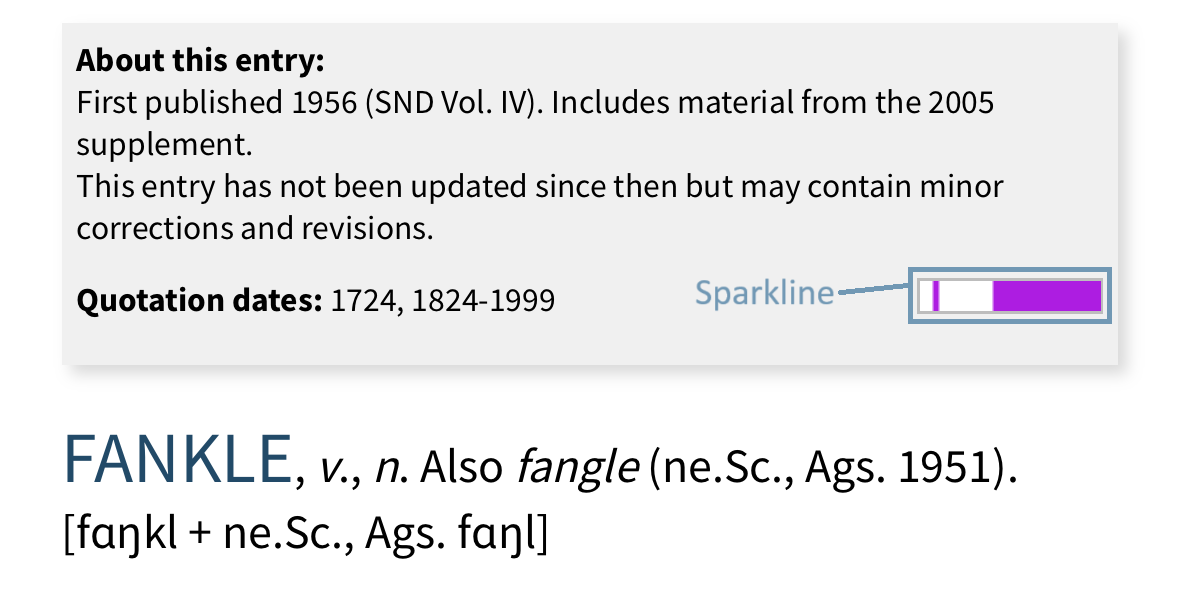
A sparkline provides a visual summary of the dates of all the quotations cited in an entry.
- Sparklines for SND entries cover the period 1700-2005; sparklines for DOST entries cover the period 1375-1700.
- Purple blocks represent dates with quotations in the entry. When the interval between dates is less than 50 years this date range is represented as a continuous block.
- Gaps represent periods of more than 50 years without a quotation.
You can see a summary of the quotation dates to the left of the sparkline and by hovering over the sparkline (or lightly tapping it on a mobile device).
Quick Search and Advanced Search Top
There are two ways to search DSL Online for Scots words and meanings.
Quick Search lets you perform simple searches directly from the home page and, on a desktop, from the header of any page. As you type your search term you’ll be shown a list of suggested matches.
Advanced Search lets you perform searches that are more complex or have a more specific focus from a dedicated search page. You can search headwords, the full text of entries or limit the search to illustrative quotations. You can also use helpful features like wildcard characters when you’re not sure of the spelling of your search term. There are help boxes on the Advanced Search page that provide further guidance for getting the most out of these searches.
Regardless of the type of search you perform, you’ll be taken directly to the entry page if there’s only a single result. When there are multiple results, these will be listed on a dedicated results page. You have the option to download this list as a spreadsheet. Once you click through to one of the entries, the list of results can still be accessed, allowing you to explore the other options if needed.
Advanced Search: Search quotations within a date range Top
DSL Online features more than 750,000 illustrative quotations and you can search all of them with the ‘quotations only’ option in DSL’s Advanced Search tool. You can even limit your search to quotations from a particular date range.
For example, if you want to find examples of ‘braw’ from the period 1750-1825:
- Choose Advanced Search.
- Enter ‘braw’ as your search term.
- Choose ‘quotations only’.
- Set the date filter from 1750 to 1825.
- Choose your source dictionary (in this case SND).
- Press search.
You’ll be presented with a list of up to 500 entries that include at least one quotation containing the word ‘braw’ (in that particular spelling only) from your specified date range. You’ll also see a snippet of each example (up to a maximum of ten) from those entries.
Advanced Search: Finding words without knowing the spelling Top
DSL’s Advanced Search allows you to carry out more complex searches. You can get to Advanced Search from the home page. The following guidance will help you to use search tools to find combinations of words and to find words when you’re not sure of the spelling.
Boolean operators – finding combinations of words
AND, OR, and NOT are Boolean operators. When entered in uppercase, they help refine search results by combining or excluding keywords to make searches more precise.
- AND lets you search for a specific combination. If you search for heels AND taes your results will show all instances that include both words, though not necessarily together.
- OR broadens your search. Searching for heels OR taes will find instances that mention at least one of the words, if not both.
- NOT excludes terms. So, if you search for heels NOT taes, your results will include the word heels, but not the word taes.
Wildcards – finding words when you’re not sure of the spelling
Wildcards can be used to stand in for characters you’re not sure of. There are two types:
- The question mark – ? – stands in for a single character. This is helpful, for instance, if you’re not sure if something is spelt with an i or an e. You can use ? in place of any letter you’re not sure of.
- The asterisk – * – stands in for any number of characters. The asterisk is great when you’re unsure of the full word or want to include spelling variations. It can also be useful if you’re interested in words that start with a particular prefix or end with a particular suffix.
You can even use wildcards and Boolean operators together to create narrower searches.